
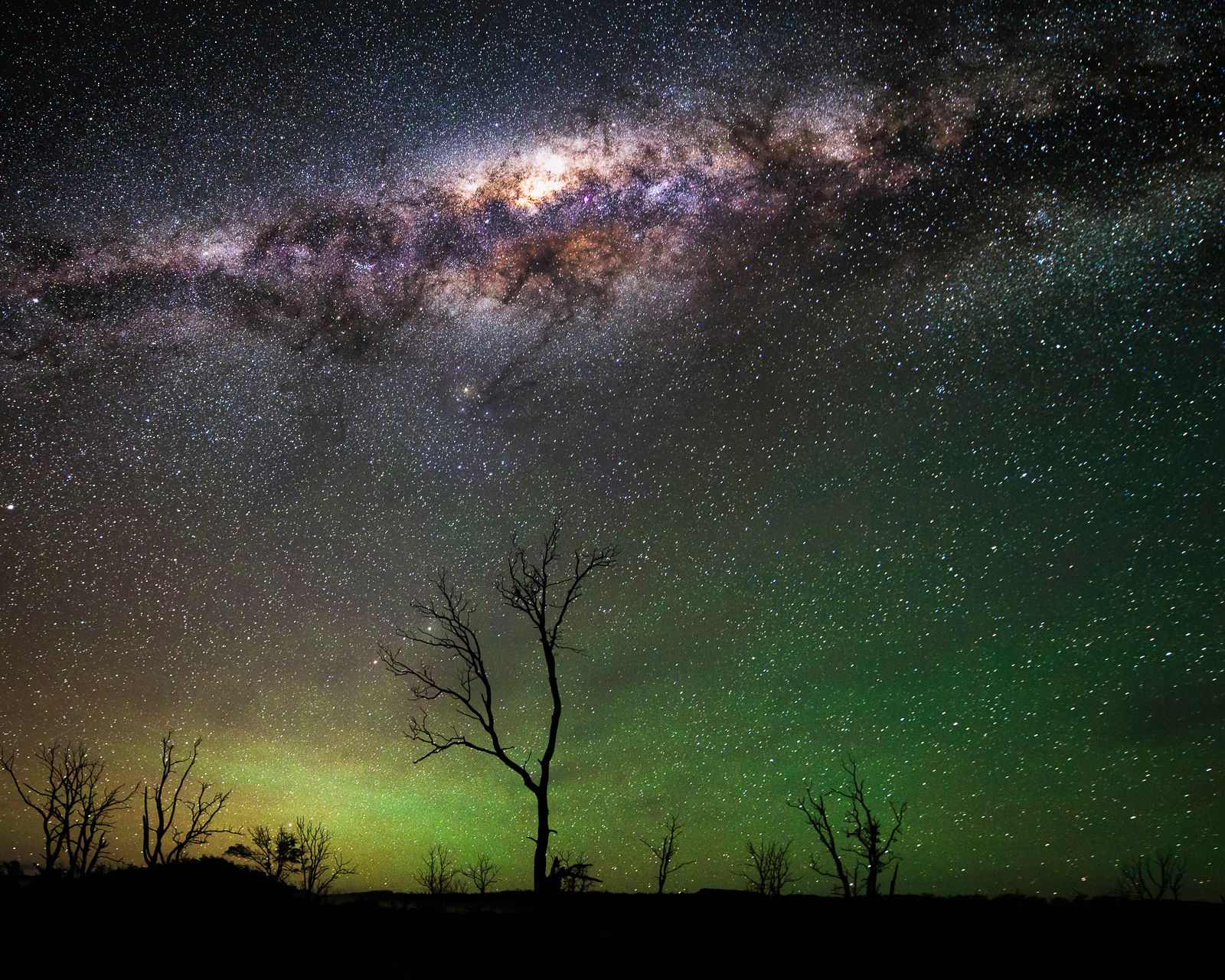
The techniques in this post are drawn from the tutorial video series by Richard at Nightscape Images on YouTube – specifically his tracked panorama edit, Seestar S30 Pro Siril workflow, and single tracked frame composite videos. Huge credit to Richard for sharing his knowledge so generously. Go subscribe to his channel if astrophotography is your thing.
Whether you’re blending a tracked panorama of the Milky Way, processing Seestar images in Siril, or compositing a single tracked exposure with a light-painted foreground – astrophotography editing is a multi-step process that rewards a methodical approach. In this post I’ll walk you through three distinct workflows, each suited to a different shooting scenario.
The Core Concept: Separate Your Stars from Your Nebulosity
Before diving into each workflow, there’s one principle that underpins all of them: separating the stars from the nebulosity (the gas and dust clouds) before editing.
Why? Because the adjustments that bring out faint nebulosity – dehaze, curves boosts, contrast – will blow out your stars if applied to the whole image at once. By isolating the two elements, you can edit each independently and recombine them for a clean, detailed result.
There are two tools for this job:
- RC Astro Star Exterminator (Photoshop plugin, ~$55 USD) – high quality, slower on large files
- Siril’s Cyclone Starless script (completely free) – faster, excellent results, especially for Seestar images
Workflow 1: Tracked Panorama (Foreground + Sky Composite)
Tools: Lightroom → Microsoft ICE → Photoshop → Lightroom
This is the most involved workflow, because you’re shooting the foreground and sky separately – the sky is tracked, the foreground is not – and stitching them into a panorama before compositing.
Step 1: Lightroom Prep
Do minimal adjustments at this stage. For both the foreground and sky frames: slight exposure boost, recover shadows, apply lens profile correction. No noise reduction yet – you’ll do that later in Photoshop.
For the sky frames, set white balance around 3000K with +1.5 green tint (do this in-camera and fine-tune in Lightroom). This reduces the heavy magenta cast you get from an astro-modified camera. Export everything as 16-bit TIFFs with no resizing and no watermark.
Step 2: Stitch in Microsoft ICE
Microsoft ICE (Image Composite Editor) is a free Windows tool that does an excellent job of panorama stitching. Import your TIFFs, then switch the projection mode from Spherical to Mercator. Spherical stretches stars at the top of the frame; Mercator keeps them round and natural. Crop to remove corner bleed, then export as TIFF. Do this separately for your foreground pano and sky pano.
Tip: Shoot a double-row foreground panorama and include some sky in the frame, even if you don’t want it in the final image. Photoshop’s Sky Replacement tool works much better when it can see the original sky gradient and light pollution.
Step 3: Edit the Sky in Photoshop
- Open your stitched sky TIFF
- Duplicate the layer twice – name them
starlessandstars(keep original as reference) - Run RC Astro Star Exterminator on the
starless layer with Large Tile Overlap enabled. On a large panorama this can take 15+ minutes. - Duplicate the starlesss layer again (
starlesss copy) – always work on the copy - To extract a pure stars layer: on the
starslayer, go to Image → Apply Image, select thestarlessslayer, change blending to Subtract. You now have a layer of nothing but stars. - Add a Curves adjustment to
starlesss copyto brighten slightly. Use the layer mask to paint out the boost over light pollution zones and bright nebulae like Orion. - Add a Color Balance adjustment to reduce the magenta/pink cast: cyan in midtones, blue in shadows, yellow in highlights.
- Merge those layers, open Camera Raw Filter, create a Sky Mask and apply Dehaze. Counteract the added blue with yellow. Use the Subtract brush to protect the bottom of the frame.
- Add a curves S-curve for contrast and drama. Use the layer mask to protect bright nebulae.
- Add the stars back: set the
starslayer blend mode to Color Dodge. Duplicate it, invert the layer mask (Ctrl+I), then paint white only over the visually bright naked-eye stars. Duplicate once more for further intensity. - Merge all layers, apply Topaz DeNoise to the background, then flatten and save.
Step 4: Composite Foreground in Photoshop
- Open your foreground pano from Lightroom (Edit In → Photoshop)
- Clone stamp any missing corner pixels
- Edit → Sky Replacement → import your edited sky TIFF. Photoshop auto-blends beautifully if your foreground was shot wide open.
- Refine the mask around trees with a black brush on the sky replacement layer mask
- Add a Color Balance adjustment to the foreground to reduce magenta and bring in more natural green/cyan tones
- Run Topaz DeNoise on the foreground layer
- Flatten, save, return to Lightroom
Step 5: Final Polish in Lightroom
- Mask and brush the water/reflections: boost exposure slightly, match sky colour tones
- Add two linear gradient vignettes from the sides to draw the eye inward
- Light global dehaze + yellow counterbalance, slight clarity on foreground via mask brush
Workflow 2: Seestar S30 Pro – Siril Starless Method
Gear: ZWO Seestar S30 Pro
Tools: Siril → ASIView → Photoshop → Lightroom
This is the workflow to use when you’ve captured deep-sky data with a smart telescope like the Seestar, and want to process it for use as an astro landscape sky – completely free.
In Siril
- Open your stacked image – switch to Auto Stretch to see it. Rotate/flip to correct orientation (Seestar images often arrive upside down or mirrored).
- Background Extraction – Image Processing → Background Extraction → click Add Dither → remove sample points from nebulosity regions → Compute Background → Apply.
- Histogram stretch – switch back to linear, then Image Processing → Stretches → Histogram Transformation → Apply.
- Cyclone Starless script – Scripts → Python Scripts → Processing → Cyclone Starless. Leave defaults, tick Generate Star Mask → Process Image.
Siril exports two FITS files to your Pictures/Siril folder: starless_stacked.fits and starmask_stacked.fits.
Converting FITS to TIFF via ASIView
Open ASIView (free ZWO tool), open each FITS file and save as TIFF. Move both TIFFs to your working folder.
In Photoshop
- Open the starless TIFF. Flip vertical if upside down (Edit → Transform → Flip Vertical).
- Open the starmask TIFF, copy as a layer above the starless. Flip vertical if needed.
- Set stars layer blend mode to Color Dodge
- Duplicate the starless base layer and work on the copy
- Curves adjustment: brighten gently, use layer mask to protect bright nebula cores
- Camera Raw Filter → Mask → Brush: Clarity ~55 + Texture over nebulosity. Subtract brush to remove effect from bright stars. Push Reds/Yellows in Color Mixer for richer colour.
- Global curves: add drama, use layer mask to keep the bottom of frame brighter for landscape blending
- Merge visible layers
- High Pass sharpening: duplicate layer → Filter → Other → High Pass ~4–5px → blend mode: Overlay
- Topaz DeNoise on the base layer to offset noise from sharpening
- Add layer mask to the highpass layer, invert (Ctrl+I), paint white only over nebulosity you want sharpened
- Blend with foreground using Sky Replacement, then final tweaks in Lightroom
Key tip: Keep the bottom of your sky brighter than a typical deep-sky edit. When you blend this into a landscape, a natural horizon glow looks far more realistic than a hard dark cutoff.
Workflow 3: Tracked Single Frame + Light-Painted Foreground
Sky: f/2.8, 60s, ISO 1600 (tracked). Foreground: f/5.6, 13s, ISO 500 (same infinity focus, light painted)
Tools: Lightroom → Photoshop → Lightroom
The Focus Trick
Shoot both your sky and foreground at infinity focus – don’t refocus between them. When you stop down from f/1.8 to f/5.6 with a 20mm lens, the depth of field increases dramatically. A subject 3–4 metres away will come into focus at f/5.6 even though the lens is set to infinity. This only works with ultra-wide lenses (14–20mm). At 35mm or longer, you’d need to refocus.
Lightroom Prep
- Sky frame: exposure boost, drop highlights, slight noise reduction, lens profile corrections, remove chromatic aberration
- Foreground frames (3–4 light-painted shots): exposure boost, slight clarity, minor noise reduction
- Ambient sky frame (with tree, untracked): exposure boost, drop highlights, noise reduction – this is your mask reference, not your final sky
- Select all foreground frames + ambient sky frame → right-click → Edit In → Open as Layers in Photoshop
Photoshop – Sky Edit (separately)
- Open tracked sky frame in Photoshop, duplicate the base layer
- Run RC Astro Star Exterminator on duplicate → creates starless layer
- Duplicate original again → name
stars only - Image → Apply Image with Layer:
stylus, Blending: Subtract → extracts pure stars layer - Camera Raw Filter on starless: Dehaze up, compensate with Exposure + Contrast, warm temperature slightly, drop Highlights, slight Magenta if too green, Noise Reduction
- Stars layer blend mode → Color Dodge. Duplicate for extra star presence.
- Merge → flatten → save → return to Lightroom
Photoshop — Foreground Composite
- Drag ambient sky layer to the bottom of the stack
- Select all foreground layers → blend mode: Lighten
- Work one foreground layer at a time. Drop ambient sky opacity to ~40% so tree edges are visible for masking.
- Add white layer mask to top foreground layer. Paint with black hard-edged brush at 100% opacity to remove the sky from each foreground layer, keeping only the lit subject.
- Hold Alt and drag the layer mask to copy it to each subsequent foreground layer
- Evaluate each layer – rub out hot spots, over-lit areas, unwanted subjects
- Directional light logic: remove light from the side of the tree facing away from the Milky Way core, so the galaxy appears to be the light source
- Group all foreground layers → change group blend mode: Pass Through → Lighten
- Edit → Sky Replacement on ambient sky layer → import your tracked sky TIFF. Refine tree edge mask.
- Re-enable foreground group → final composite appears
Final Lightroom Polish
Add a radial gradient vignette: darken edges (~−1.3 EV) and rotate so the bright side faces the Milky Way core – this creates a subliminal impression that the galaxy is lighting the scene.
Tools at a Glance
| Tool | What It Does | Cost |
|---|---|---|
| Adobe Lightroom | RAW processing, final polish | Subscription |
| Microsoft ICE | Panorama stitching (Windows only) | Free |
| Adobe Photoshop | Compositing, layers, masking | Subscription |
| RC Astro Star Exterminator | Separates stars from nebulosity in Photoshop | ~$55 USD |
| Topaz DeNoise | Noise reduction plugin | Paid |
| Adobe Camera Raw | Dehaze, masking, colour — built into Photoshop | Included with PS |
| Siril | Background extraction, histogram stretch, starless scripts | Free |
| ASIView | Converts FITS files to TIFF | Free |
Astrophotography editing is a craft that develops over time. The techniques here aren’t the only way to do it — but they’re a solid, tested foundation to build from. Keep your workflow non-destructive (use layer masks, work on duplicates), stay subtle with your adjustments, and always ask: does this look like what I actually saw in the sky?
Clear skies.